xuất bản đò vào web
Embed a Google Map
Google maps can be embedded into your WordPress posts or pages. A Google map can help people find your office or event.
See how you can use embedded Google maps on the Lorem County demo site and the Ipsum County demo site.
- To insert a Google Map, first go to maps.google.com and locate the map you want to embed.
- In the top left corner, click the main menu


- Select Share and embed map.
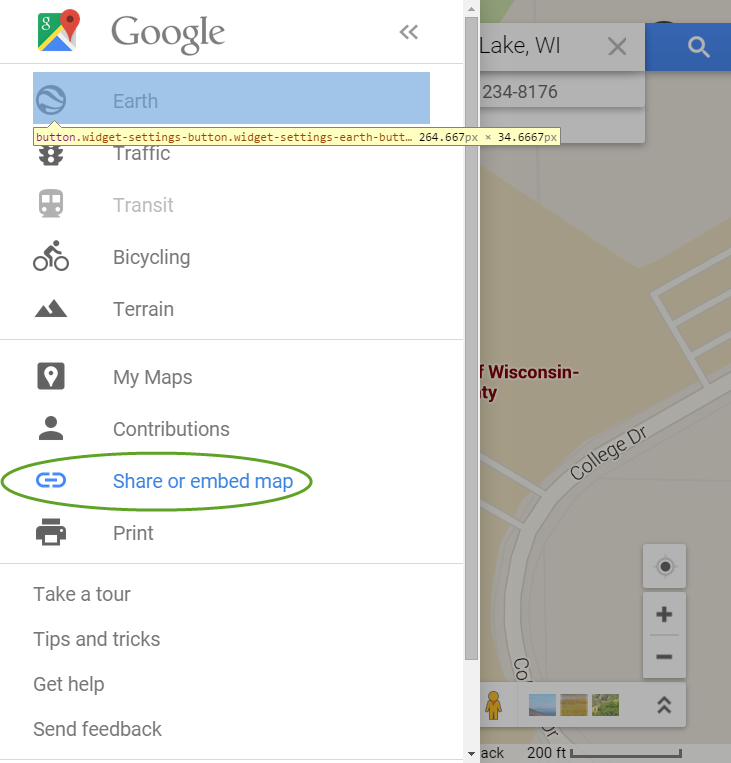
- Then select the Embed map tab.

- Now select and copy (CTRL+C) the link to your clipboard.

- Next, on the Edit Post or Page screen paste in the new Google Map link that you just copied to your clipboard (use CTRL+V). Make sure it’s on its own line.
IMPORTANT INFORMATION: Once you have the link in your post or page, you will need to extract the actual URL from that, so instead of:
<iframe src=”https://www.google.com/maps/embed?pb=!1m18!1m12!1m3!1d2797.3055676745075!2d-91.74598585!3d45.4837911!2m3!1f0!2f0!3f0!3m2!1i1024!2i768!4f13.1!3m3!1m2!1s0x52acfa4d9598b9cb%3A0x58c9d238a5cf60fc!2sUniversity+of+Wisconsin-+Barron+County!5e0!3m2!1sen!2sus!4v1392744593637″ width=”600″ height=”450″ frameborder=”0″ style=”border:0″></iframe>
- Just keep the actual URL, everything between the quotation marks. It should look like this:

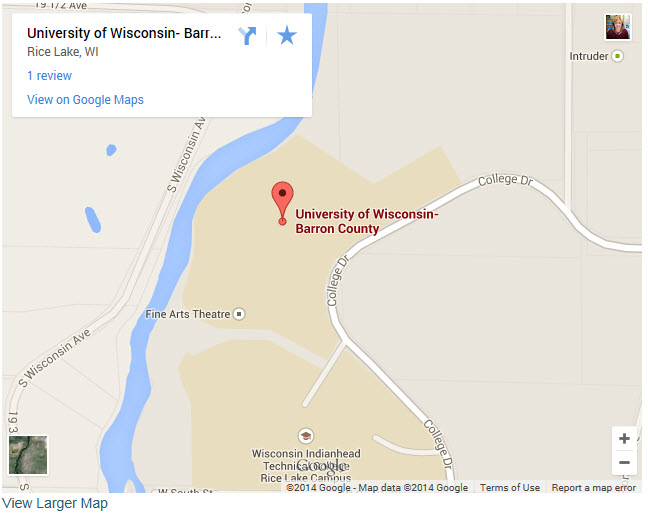
- Preview your changes and then select Publish/Update and the new Google Map will appear in your post looking something like this:
Best Practice for using embedshort code
The best practice is to use the embed short code around your URL. This will ensure that if for some reason the content doesn’t embed,the shortcode will at least display the URL as a clickable link. If you just use the paste the url on its own line method and your content does not embed, only an unclickable link will appear(or in some cases nothing at all) and no one will be able to get to your document,video,calendar,map,etc.
